

2025 Apps - Free Download & Official Reviews

Master NBA Live Scores & Stats
 4.2
4.2
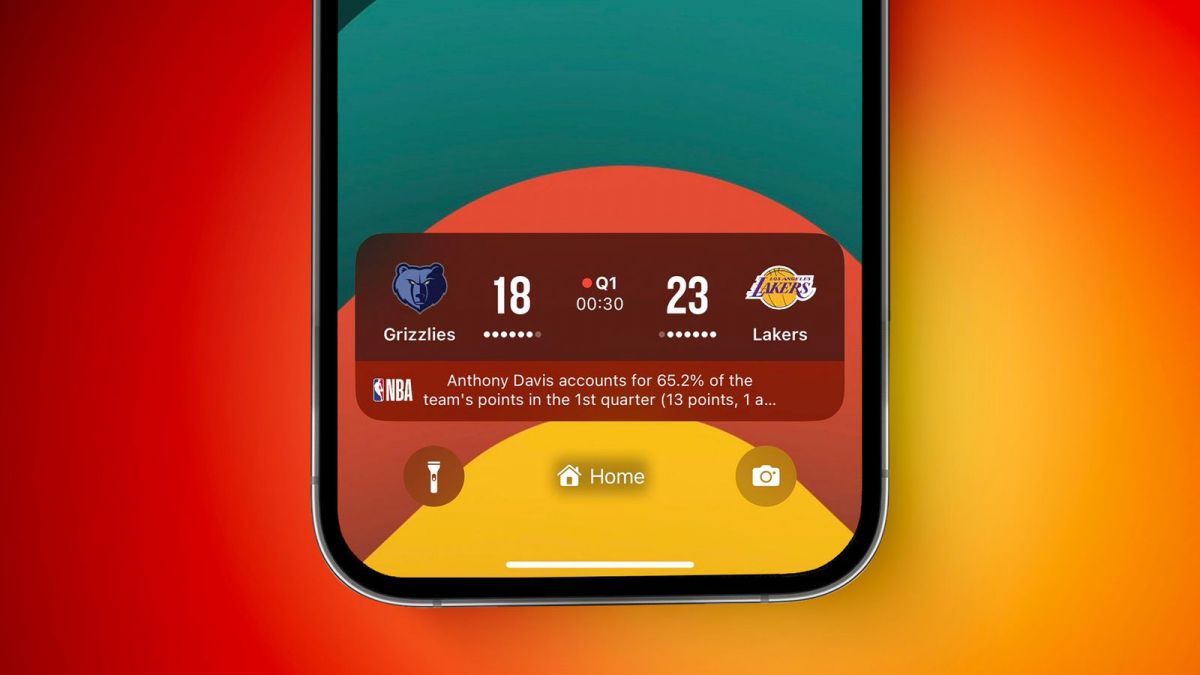
To enjoy the live score updates features, first of all, open NBA and login to your personalized dashboard. The homepage displays live matches, and if you tap on any live game, it brings up detailed scoreboards as well as minute-by-minute updates. As you browse through the live stream, you will come across options for sorting and filtering game information such as team scores, player stats, and period-wise highlights. Furthermore, the app has interactive graphs and charts displaying ranking changes and momentum shifts throughout the game.

NBA Trivia and Gaming Features
4.2
Playing NBA Play:1. Access NBA Play: Launch NBA and navigate to the “Discover “ tab. Pick “NBA Play” to play the games.2. Pick a Game: Select different games such as “NBA Trivia” or “Guess the Kicks.”3. Play and Compete: Engage in daily challenges and compete with other fans.4. Share Scores: Tap “Share” to publish your scores on social media.By using NBA Play, fans can enhance their NBA experience and test their skills in basketball facts.In conclusion, NBA Play is an exciting feature within NBA that gives basketball enthusiasts a new way of engaging with the league. Playing the interactive games helps the users get closer to NBA while having fun. The interactivity of the app makes it a first-choice option for basketball enthusiasts around the world.
Effortless Google Translate Access
4.3
Mobile Installation (Android)1. Open the Google Play Store on your Android device2. Tap the search box at the top and type “Google Translate”3. Select Google Translate from the search results, or more straightforwardly, go directly to the same app installation page from here https://play.google.com/store/apps/details?id=com.google.android.apps.translate&hl=en&gl=us4. Click the “Install” button and let the download complete5. Once installed, click “Open” to launch the app6. Sign in with your Google account (optional but recommended for saving your translation history)7. Grant necessary permissions when prompted (microphone for voice translation, camera for photo translation)Mobile Installation (iOS)1. Launch the App Store on your iPhone or iPad2. Click the “Search” tab at the bottom right3. Type “Google Translate” into the search bar4. Select Google Translate from the list, otherwise, visit the detail page from here https://apps.apple.com/us/app/google-translate/id4147065065. Tap “Get” and input your Face ID, Touch ID, or Apple ID password6. Wait for it to download7. Tap “Open” or find the app on your home screen to open it8. Sign in with your Google account (optional)9. Allow permissions when prompted for full functionalityPC (Web Browser)1. Type translate.google.com into your web browser of preference.2. No installation necessary, but save to use it in the future.3. Optional: for Chrome, download Google Translate through the Chrome Web Store for convenient shortcuts.

Travel Without Limits with Google Translation
4.3
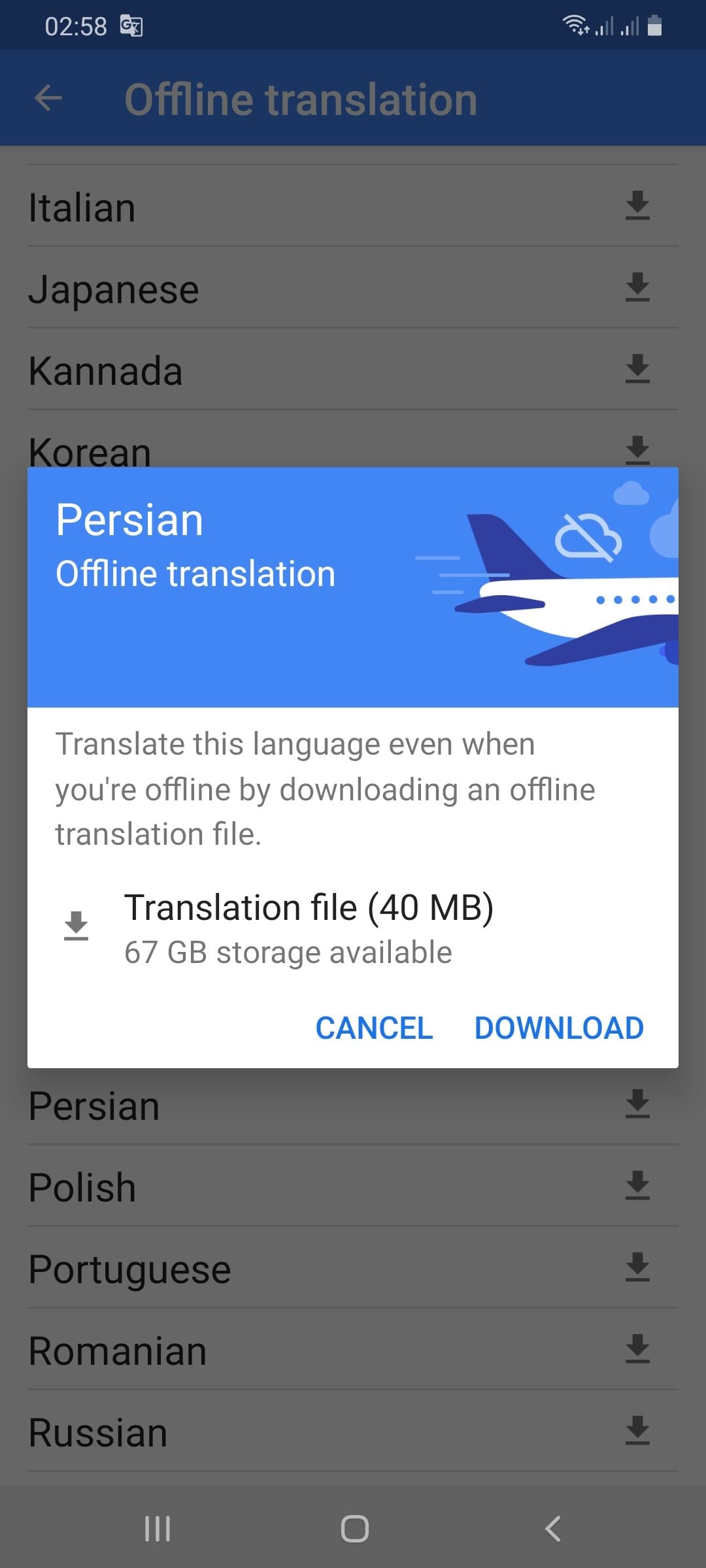
Setting Up Offline Translation:1. Open Google Translate.2. Press the three lines on the top-left.3. Select “Offline Translation.”4. Press the list of languages shown. Press the download symbol next to the languages you need.5. Let each of the chosen language packs download.Using It on the Go:1. Open Google Translate and select the language from and to which you would like to translate.2. Type, paste, or dictate your message into the application.3. Translations will be provided by the application with no need for an internet connection.Offline Capabilities Provided:- Camera Translation: While not all features can be accessed offline, some languages allow text input through the camera to be translated offline without any need for the internet.- Text Input: Manual text entry is still entirely accessible offline.Best Practices:- Download all language packs required prior to your trip. Each pack will take approximately 30-50 MB of space.- Offline translation will not be possible if your phone lacks sufficient battery power.

Stay Current of Google Translate Updates
4.3
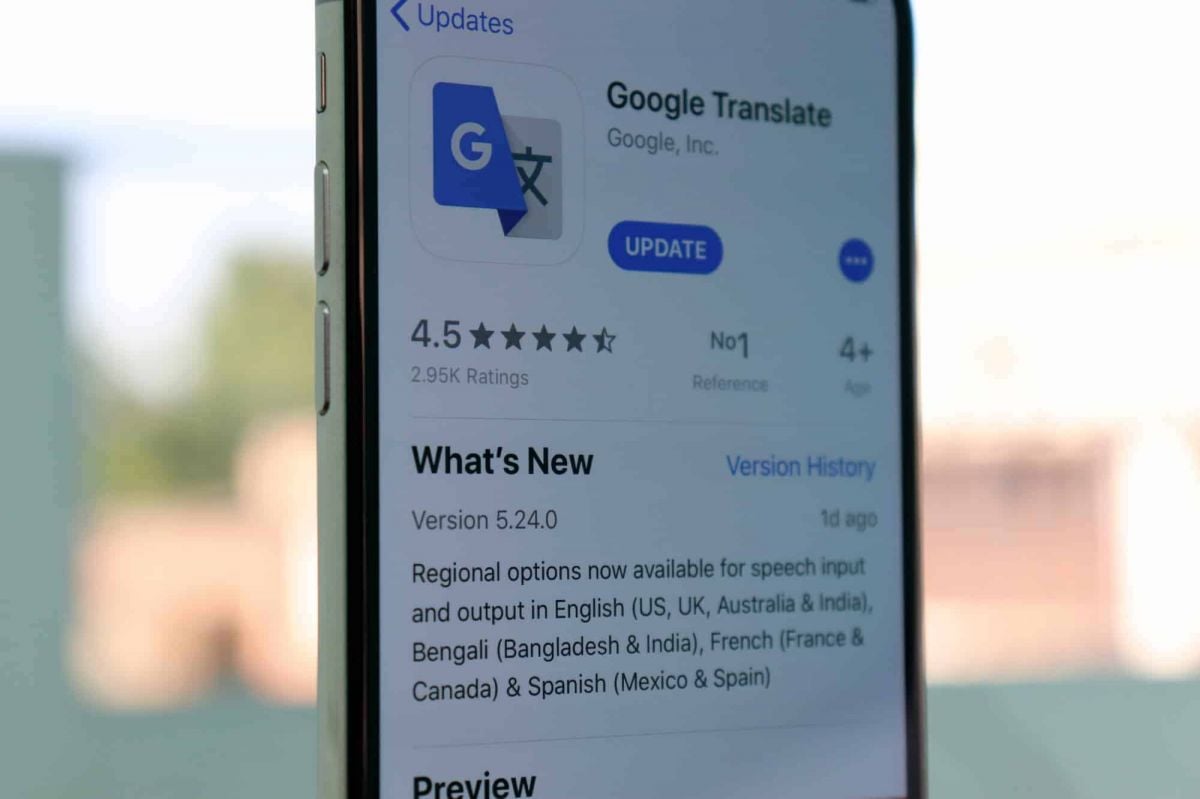
Updating on Android Devices:1. Open the Google Play Store.2. Tap your profile picture at the top-right corner.3. Select “Manage apps & devices.”4. In the “Updates available” area, find Google Translate.5. Tap “Update.”Updating on iOS Devices:1. Launch the App Store on your iPhone/iPad.2. Tap your profile icon at the top corner.3. Scroll down to find Google Translate under “Updates Available.”4. Tap “Update” to update to the latest version.Updating Web Version1. The web interface (translate.google.com) gets automatically updated on Google servers.2. Clear cache in the browser to have the latest version.3. Refresh the webpage after clearing cache to get the latest version loaded.4. Look out for new features or new changes in the interface that indicate updates.

Live Communication with Google Translate Interpretation
4.3
Setting Up the Interpreter Mode:1. Open Google Translate.2. Tap “Conversations” from the bottom menu.3. Choose the languages for both speakers.4. The app will show automatically which language is being spoken and will translate it real-time.How It Works:- Person A speaks in his own language. The app identifies and translates his words by voice and display in Person B’s language.- Person B responds in their language, and Google Translate translates their response for Person A.Successful Simulations Secrets:- Speak clearly with minimal background noise.- Use short sentences or phrases for greater accuracy.- Have both speakers held near the microphone.

Google Translate for Language Learning
4.3
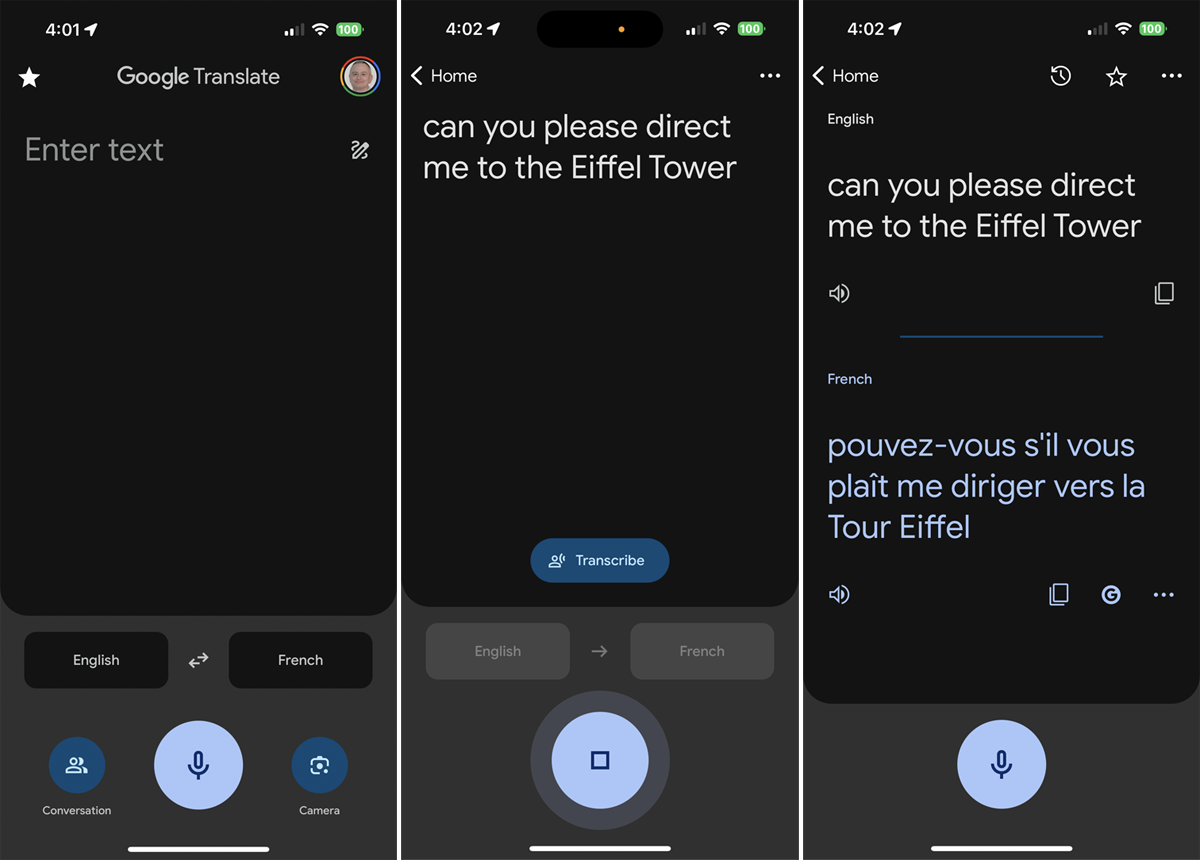
Translating Words and Phrases:1. Type or speak a word/phrase in your source language.2. Observe the translation results in your target language.3. Listen to the correct pronunciation by tapping the speaker icon.Creating Personal Word Lists:1. Search for a word and tap the star icon to save it as a “favorite.”2. See all the saved words in the “Saved” menu for reference.3. Check your starred list periodically for memory reinforcement.Learning Through Visual Context:- Use the camera translation mode to examine objects or words with your device. This helps connect visual memory to language acquisition.Transcription Mode Practice:1. Tap on the microphone icon and read out phrases in your target language.2. Examine the app’s transcription to keep an eye on your pronunciation and grammar.3. Use the app’s suggestions to correct mistakes.

「地上波テレビ 視聴、ワンセグ 地デジ リアルタイム配信」をダウンロードする
3.6
「地上波テレビ視聴」アプリのダウンロード方法「地上波テレビ視聴」アプリをダウンロードするには、以下の手順を参考にしてください。①Android端末の場合は「Google Play ストア」、iOS端末の場合は「App Store」を開きます。②検索バーに「地上波テレビ視聴」と入力し、検索結果から該当するアプリを選択します。③「インストール」(Android端末)または「入手」(iOS端末)ボタンをタップし、ダウンロードとインストールを開始します。④インストールが完了したら、ホーム画面からアプリを起動します。この手順を踏むことで、スマートフォンやタブレットで地上波テレビを手軽に視聴することが可能になります。「地上波テレビ視聴」アプリのアップデート方法アプリを常に最新の状態にアップデートすることで、機能の改善や不具合の修正が反映され、快適なテレビ視聴体験が得られます。以下の手順でアップデートを行ってください。①Android端末の場合は「Google Play ストア」、iOS端末の場合は「App Store」を開きます。②画面上部または下部のメニューから「マイアプリ」や「アカウント」を選択します。③「アップデート」タブを開き、更新可能なアプリの一覧から「地上波テレビ視聴」アプリを探します。④「更新」ボタンをタップし、アップデートを開始します。

「地上波テレビ視聴」アプリでアカウントを作成する方法
3.6

「地上波テレビ視聴」アプリでテレビを視聴する手順
3.6