


Microsoft Teams Apps - Free Download & Official Reviews

Microsoft Teams
 4.8
4.8
Microsoft Teams is an all-in-one work collaboration solution designed for the modern workplace. This collates chat, video meetings, file sharing and app integrates under one roof. From organizing a global project, holding a fast one on one call or sharing important documents with teammates, Teams helps everyone stay in sync, on the same page and productive regardless of location.
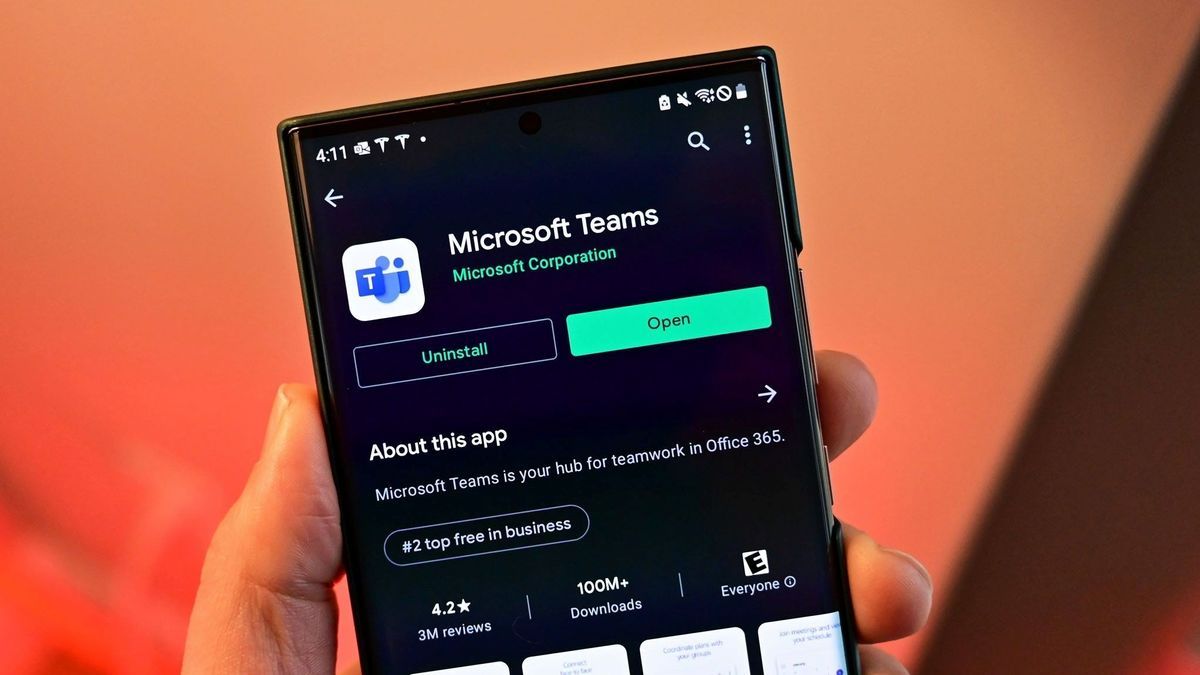
Get Microsoft Teams on iOS and Android
4.8
For Android:- Open the Google Play Store on your Android device.- Tap the search bar and type "Microsoft Teams."- Select the official app published by Microsoft Corporation and tap Install.- Wait for the installation to complete.- Once installed, tap Open from the Play Store or find the Teams icon in your app drawer.- Tap Sign In and enter your Microsoft 365 or personal Microsoft account credentials.- Complete any MFA verification steps required by your organization's IT policy.- Allow microphone, camera, contacts, and storage permissions when prompted to enable all communication features.- Teams will automatically load your workspaces, conversations, and calendar upon first sign-in.Both are available for free download. Microsoft 365 users will gain access to the entire feature set including unlimited meeting length, larger group meetings, and advanced admin controls. There's also a version of Microsoft Teams for desktop on Windows and macOS, available for download from teams.microsoft.com.
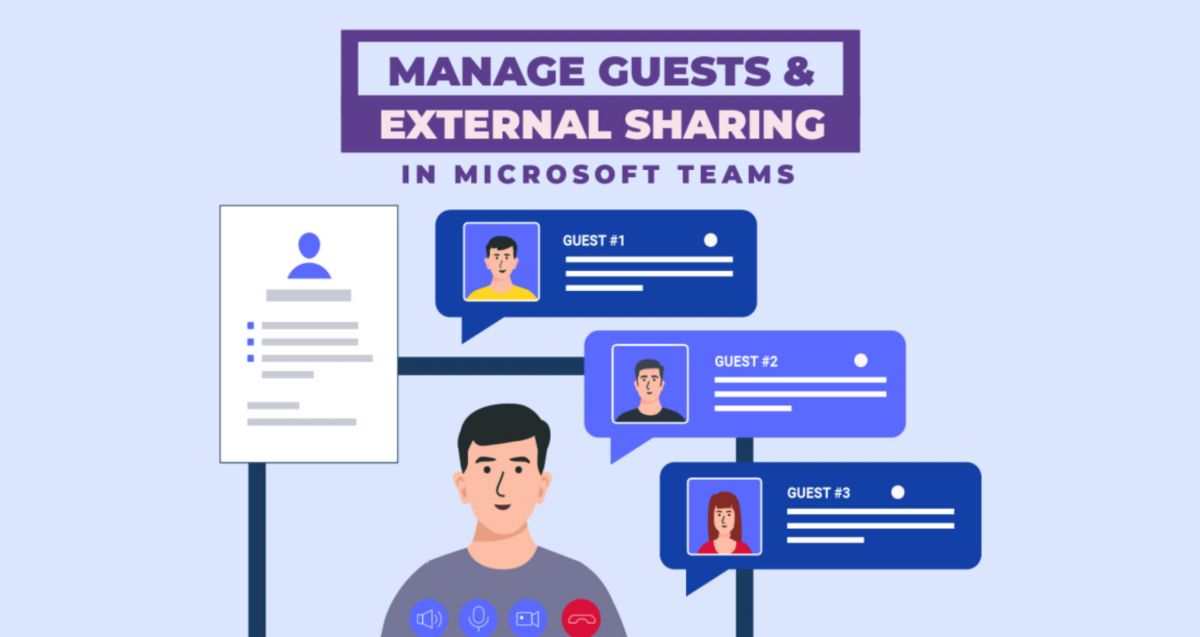
Connect Effortlessly with Your Organization via Microsoft Teams
4.8
Teams really shines in the area of meetings and calls. Meeting plans are just a few clicks away: you only have to click the calendar icon, enter the invitees, and send it which provides a link to a Teams meeting. The Meet Now button initiates an instant-live video call with whomever you choose from your Chatting List. In calls, and other features such as background blurring, virtual backgrounds, real-time captioning and live translation ensure that communication is clearer and more inclusive, in any environment and any language.Make all participants in a meeting appear in a virtual meeting area, such as a lecture hall, coffee shop or conference room, which reduces the "off camera" fatigue of typical "grid" meeting configurations. It is very effective for longer meetings and frequent team stand-ups, boosts engagement and a true sense of connection.Never ignore @mentions or status bars. Using @name will alert the colleague with a direct message in the channel especially when it is very busy. Your status is always visible to everyone, so that they can make informed and intelligent calls on how and when to reach you with message hints like Do Not Disturb and Out of Office.
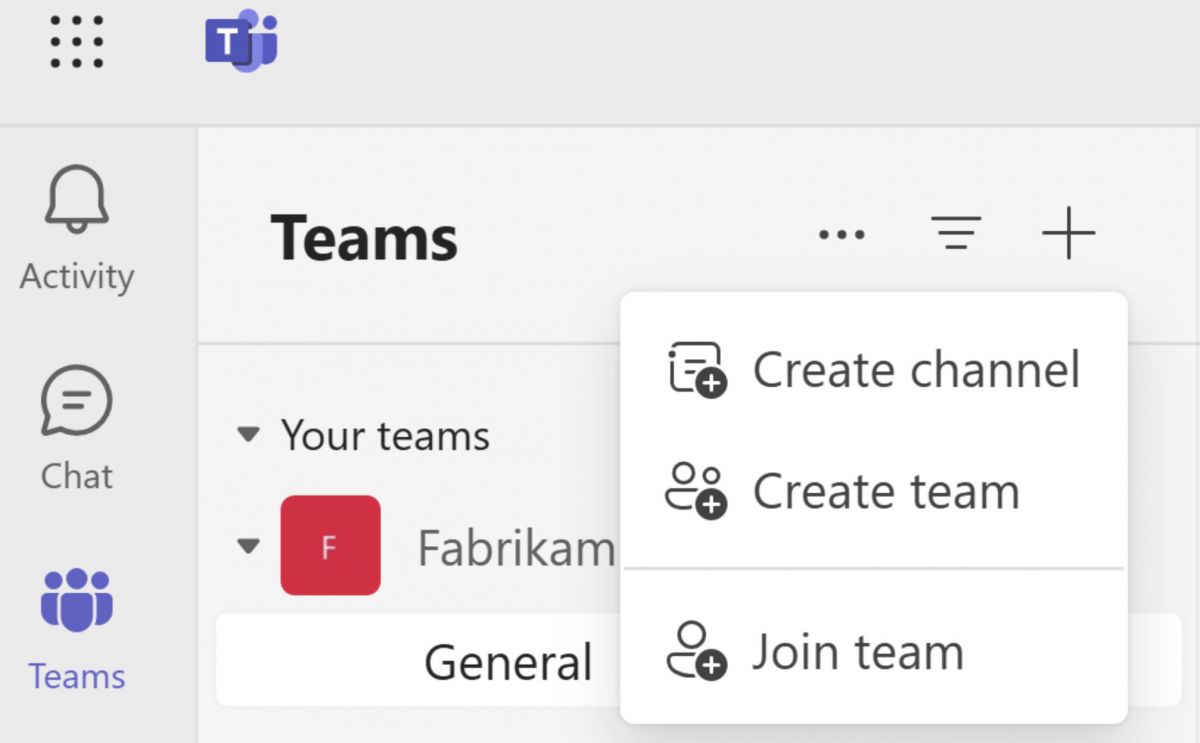
Effectively Manage Your Workflow with Microsoft Teams
4.8
One of the most powerful tools that the platform has for project management is its built-in, seamless integration with Microsoft 365 productivity apps. At any time, members of a project team may upload and access word documents, excel spreadsheets and powerpoint files and they may collaborate on the co-authorship of these documents. This collaborative editing without going emailing back and forth to different versions of files is a synchronous activity. Changes are real-time tracked and saved in the built-in, cloud-based SharePoint or OneDrive.What's more, Teams has excellent task management features right within the shared office space interface. Project leaders can assign project parts using a range of functional programs, such as Microsoft Planner and Tasks, create definite operational timelines and track advancement with highly visual project Kanban boards. That openness creates clearer accountability—people know what has to get done, who is properly responsible, and when it is due. Add in third-party apps plus automation bots, and Microsoft Teams turns from “just a chat tool” into a more complete command area, good for steering multi-part projects from early planning all the way through the final release, even when timelines are strict.

Protect Your Data and Privacy in Microsoft Teams
4.8
Data Loss Prevention (DLP) policies prevent even sensitive information like credit card numbers, national identification numbers, or proprietary business data, from being accidentally or maliciously shared in Team chats or channels. A DLP rule is applied at all times, even when it is triggered by a message, and is automatically added to a filter to ensure compliance with the rule.DLP rule that is automatically added to a filter and applied when triggered by a message, adding an intelligent compliance filter to everyday communication.If you’re an individual user, pay attention to what you put in guest accessible channels. Guests can view everything posted in the channels they are added to, so it’s best not to place internal only details there. You should also check who has guest access from the Members panel, and remove past guests quickly once a project ends or an agreement is over.Teams privacy controls also shape how meetings work. Recording of the meeting can be prohibited for download by others, participants can be restricted to a presenter and the meeting lobby can be turned "on" to prevent entrance of non-charge participants except on an invite-only basis. These small settings can greatly help in regulating discussion dynamics and who is able to see what on sensitive discussions.
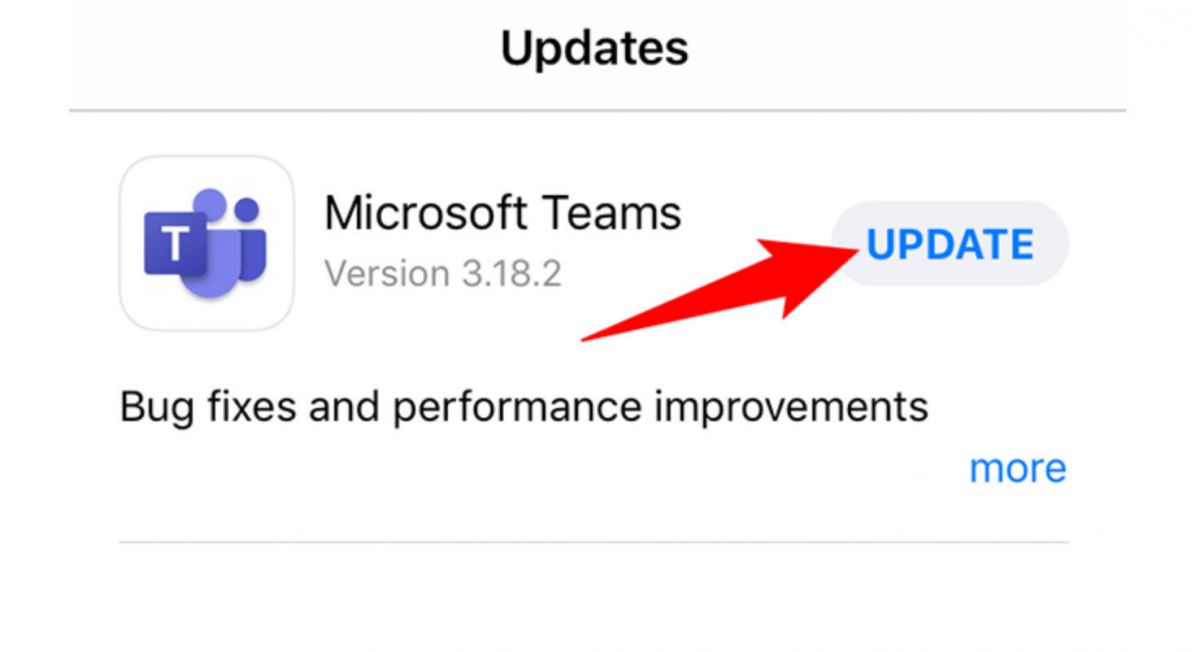
Keep Microsoft Teams Up to Date
4.8
On Android:- Open the Google Play Store and tap your profile icon in the top-right corner.- Select Manage apps & device, then check the Updates available tab for Microsoft Teams.- Tap Update to install the latest version, or tap Update all to refresh all pending apps at once.- To enable automatic updates for Teams, open its Play Store listing, tap the three-dot menu, and select Enable auto-update.- Alternatively, enable background auto-updates for all apps under Play Store Settings > Network preferences > Auto-update apps.

Install Twitter Easily
4.6
How to Get ItOn Mobile DevicesFor Android:1. Open Google Play Store on your device.2. Search for “X” in the search bar and click the official app from X Corp. More conveniently, you can just visit that page through here https://play.google.com/store/apps/details?id=com.twitter.android&hl=en_US.3. Click the “Install” button.4. After download, open the app and log in or create a new account.For iOS:1. Open the App Store on your iPhone or iPad.2. In the search tab, type “X”.3. Tap on the app from the results to download; tap “Get”. Alternatively, navigate it without the slightest effort from herehttps://apps.apple.com/us/app/x/id333903271.4. Once installed, open the application and log in or sign up.On ComputersFor Windows:1. Launch the Microsoft Store from your web browser or directly from the Start menu.2. Locate “X” and tap on the application.3. Click “Get” to download it.4. Once downloaded, find Twitter in your Start menu to open it.For Mac:1. Open the Mac App Store.2. To search Twitter, type ‘X’ in the search box. Or directly go to the same downloading page here https://apps.apple.com/us/app/x/id333903271.3. To download and install the app, tap Get.4. After you install it, open it from your Applications folder.Where Twitter Excels In1. Live Updates: Read the latest news on what’s happening in the news world.2. Engagement Tools: Like, Retweet and Reply to tweets.3. Multimedia Sharing: Share pictures, videos, and GIFs to make your tweets shine.4. Hashtags: To join the global conversations, use hashtags and search through content that is relatable to you.

Install Temu for Free
4.4
Temu Mobile Installation1. For Android Devices:- Open the Google Play Store.- Type “Temu” in the search bar and press enter. Or you can simply go ahead from https://play.google.com/store/apps/details?id=com.einnovation.temu&hl=en_UShere, which will lead you to the destination directly.- Locate Temu and tap the “Install” icon.- Once installed, tap “Open” to launch the application.2. For iOS Devices:- Go to App Store.- Search for “Temu” in the search bar and press enter. Alternatively, you can simply visit https://apps.apple.com/us/app/temu-shop-like-a-billionaire/id1641486558here, which will direct you to the page.- Temu will appear; beside it, the “Get” button is present- tap on it to download.- After the download, tap the “Open” button to access it.Temu Installation on PC1. Open any browser and enter Temu’s official website https://www.temu.comfrom here.2. If there is any desktop version available, download that; otherwise, if the browser interface provides almost the same experience, then use that.3. If a desktop download is available, then follow on-screen instructions.