

Google play store Apps - Free Download & Official Reviews
Download No Cost Play Store
 4.8
4.8
How to Get ItFor Android Devices1. Pre-installed Access: Many Android devices come pre-installed with Play Store. You just open the app and sign in using a Google account to get started.2. Manual Installation: If the application isn’t available, download the APK file from a trusted source. After that, go into Settings > Security > Unknown Sources, and click the toggle to enable installation of third-party apps not on Play Store. Then, open the installed APK file.For PCsWeb Access: Fire up any browser and head to Play Store’s official address, http://play.google.com, where you can log in and then remotely manage apps as well as send downloads to connected devices.For iOS DevicesSadly, Play Store is not natively available for iOS because Apple has its own App Store. But yes, you can access a few Google services by downloading separate Google apps from the App Store.Exclusive Features Play Store Offers1. Google Play Protect: This feature scans apps for malware and harmful behavior, keeping the users safe.2. Library: Sharing bought applications with family.3. Personalized Recommendations: The store suggests applications based on users’ preferences and previous downloads.

Update Play Store
4.8
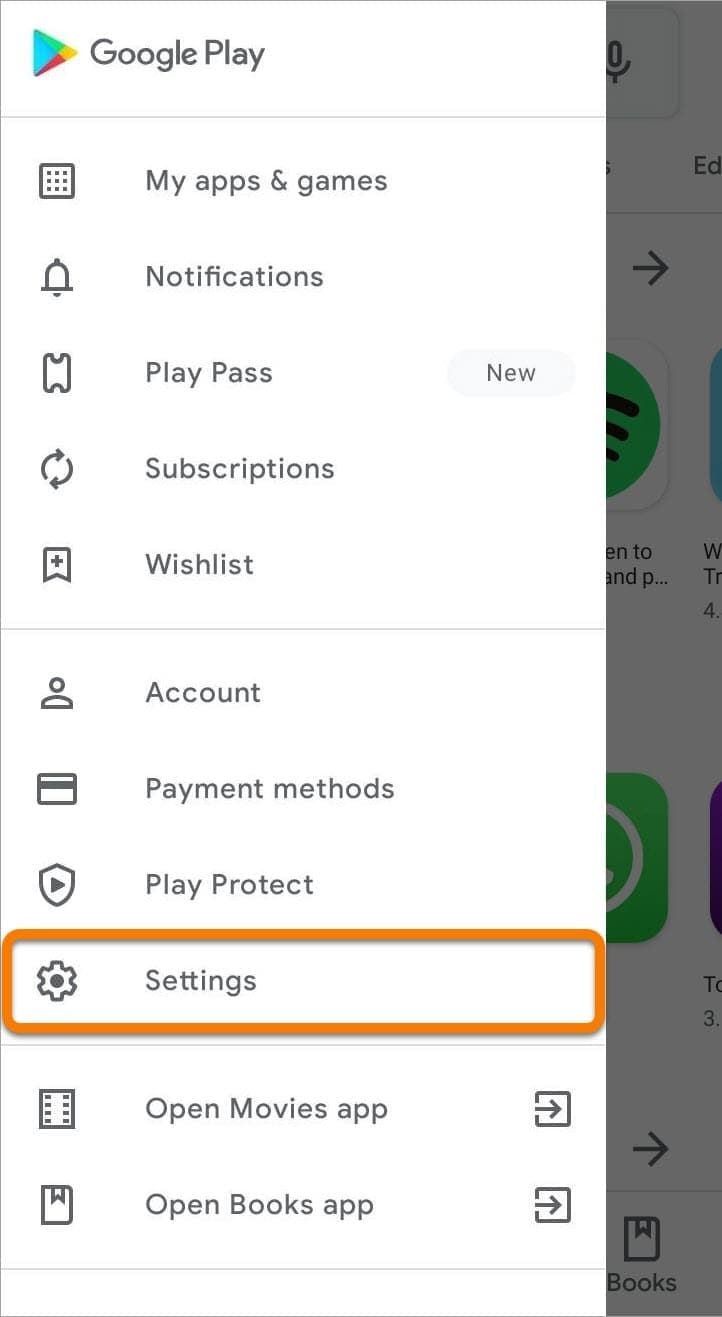
Where to Find Your Play Store Version1. Click Play Store icon on your device.2. Tap your profile picture in the top right, followed by “Settings.”3. Scroll to “About,” where your current version will be listed under “Play Store version.”How to Update Your Play Store1. Open the app.2. Tap your profile picture once more, followed by “Settings.”3. Under “About,” tap “Update Play Store.” If there’s an update available, it will start downloading and then install automatically.4. If you are already updated, it will say so in a message that your Play Store is current.Manual Update Using APK1. Download the latest Play Store APK from a well-trusted site, if you cannot update automatically.2. Go to Settings > Security > Unknown Sources, enable it.3. Download and install this APK to manually update your Play Store.

Make and Manage Payment in Play Store
4.8
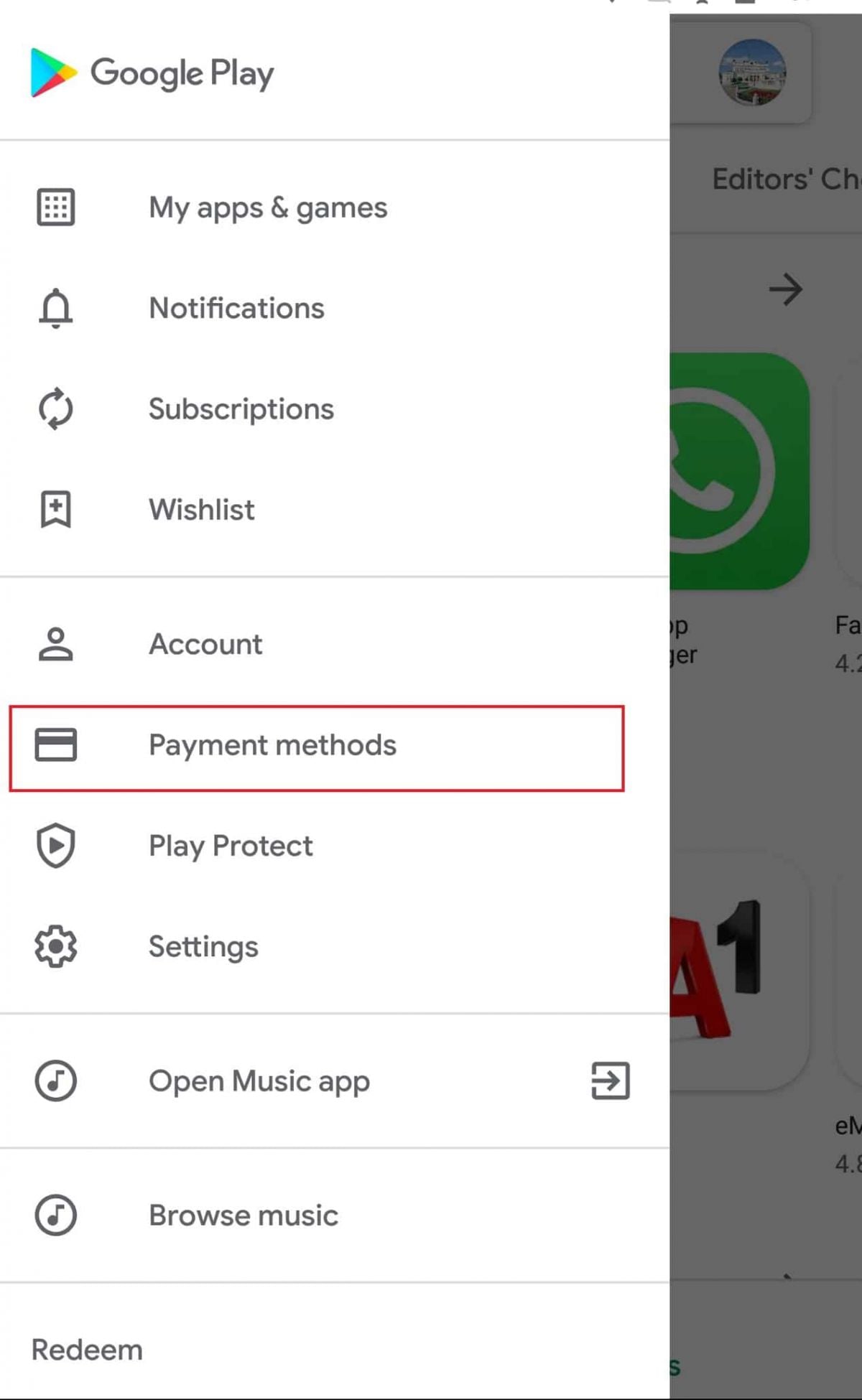
How to Make Purchases1. Open the application from the home screen of your device.2. You can search using the search bar or browse through categories.3. Tap the app or game you want to purchase.4. Tap the price button of corresponding app examples include “Buy” or “Install.”5. If prompted, select a payment method or add a new one.6. If prompted, follow any additional on-screen instructions to complete your purchase.Managing Payment Methods1. Open Play Store Settings by tapping your profile icon.2. Tap Payments & Subscriptions then select Payment Methods.3. Now you can add, remove, or update payment methods such as credit cards or PayPal to control how you pay.Removing Payment Methods in DetailTo remove a payment method from an account, follow these steps:1. Open the app.2. Tap your profile icon, located in the upper-right corner.3. Tap “Payments & Subscriptions,” then tap “Payment Methods.”4. Scroll down, and tap “More Payment Settings” that opens in a web browser5. Find the source of payment you wish to remove and tap “Remove.”

Troubleshooting Errors in Play Store
4.8
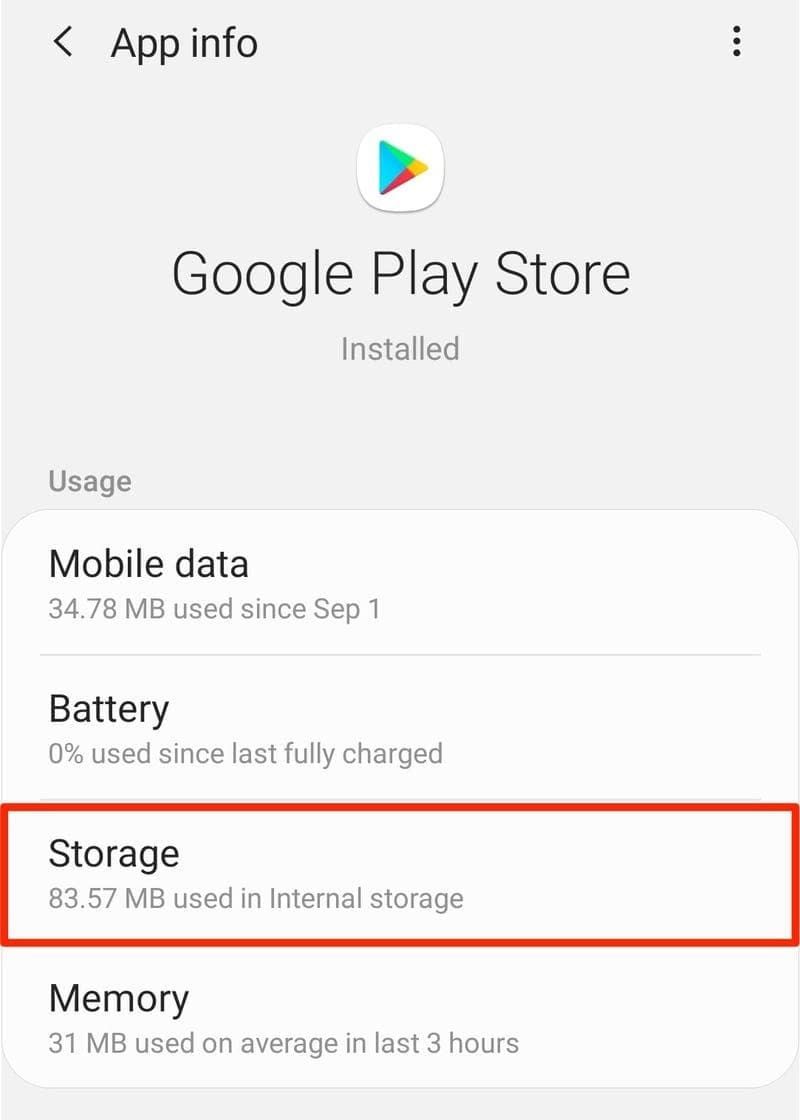
Basic Steps of Troubleshooting1. Clear Cache and Data:- Go to Settings > Apps > Play Store.- Tap on “Storage” then select “Clear Cache” followed by “Clear Data.”2. Reboot Your Device:- Restarting sort of clears off the temporary glitches that could well hamper applications’ performance.3. Internet Connection:- Make sure you are connected to a strong internet connection. Switch from Wi-Fi to mobile data and vice-versa.4. Remove and Re-add Your Google Account:- Go to Settings > Accounts > Google > Your Account > Remove Account.- Add it again from Accounts Settings, tap on “Add Account”.5. Update or Reinstall Updates for Play Store:- In Settings > Apps > Google Play Store, tap on “Uninstall updates” if available and again go to the “About” in the Setting within the app to check for updates.

Alternatives of Play Store
4.8
Let’s take a closer look at some of the popular Play Store alternatives.1. Aptoide- A community-driven marketplace boasting millions of apps, without any geo-restriction.- Users can upload their own apps with relative ease, promoting diversity in available content.2. Amazon Appstore- Provides a wide array of applications with strong developer support.- Commonly known for integrations involving Amazon devices such as Kindle Fire.3. APKPure- The app addresses a wide, varied provision of APK files directly to users for self-installation.- Very helpful in apps that are not published in your region or have restrictions via Google policy.4. F-Droid- Exclusively features open-source applications.- Ideal for users who value privacy and transparency in software development.

Apply for Cash Back Credit Cards
4.9
Steps to Apply for Cash Back Credit Cards:1. Launch Citi Mobile and log in.2. Click “Credit Cards.”.3. Scroll through the list of cards available and filter it using “Cash Back”.4. Select your desired card and click on “Apply Now.”5. Fill in your personal and financial information.6. Upload identification and proof of income documents as needed.7. Go through the terms and submit your application.8. Track status in the “My Applications” tab.Benefits for Cash-Back Cards1. Avail cash rebates when making purchases.2. Avail deals and discounts exclusively.3. Pay bills with ease using Citi Mobile.4. Real-time reward points and their redemption.

Protect Your Search Privacy
4.1
Managing Search History and Activity1. Launch Google2. Tap your profile picture in the top-right3. Click “Manage your Google Account”4. Go to the “Data & Privacy” page5. In the “History settings,” select “Web & App Activity”6. Turn off “Web & App Activity” so Google does not record your searches7. Or choose “Auto-delete” to delete activity older than some chosen timeframePrivate Searches with Incognito Mode1. Launch Google on your smartphone2. Tap your profile picture at the top right3. Choose “Turn on Incognito Mode”4. In Google Chrome browser, tap on three-dot menu and select “New Incognito Window”5. Conduct your searches without storing history in your account6. Close the tab or window in Incognito mode once completed7. Keep in mind that while Incognito blocks local history storage, your ISP knows what you are doing

Main Features of Google Home
4.2
1.Centralized Smart Home ControlGoogle Home is a control center for your smart home appliances — lights, thermostats, security cameras and door locks that are compatible with the Nest platform. Users can pair the smart plugs with relatively simple voice commands like “OK, Google, turn on the living room lamp” to bring convenience and simplicity to an everyday task. On the software front, it plays nicely with other products, such as Philips Hue and Nest, and forms one integrated system.2.Voice-Activated ConvenienceGet answers from Google and control your home using your voice with the built-in Google assistant. It can remind you of your calendar, report the weather, play music from Spotify or YouTube Music and even control — turn on and off — TVs with Chromecast built into them. The Voice Match capability identifies you when it talks to you and then can provide responses based on your calendar, turn on reminders or remember things like what networked speakers you prefer.3.Automation and RoutinesGoogle Home makes your everyday easier by delivering the simplicity of voice control to hundreds of compatible smart devices. For instance, a "Good Morning" program can switch on lights, read news headlines and raise the temperature. These personalizable automations also save time and improve productivity, ensuring that the device becomes a natural extension of users' lives.4.Entertainment and ConnectivityMore than just a means to run smart-home technology, Google Home is also an entertainment star that can play music and podcasts, in addition to YouTube videos. It is hands-free enabled for calls and texts, while Google Calendar, Maps and other services help users stay organized. And with ongoing updates and support for the Matter smart home standard, Google Home is still a forward-looking addition to any modern household.