

Phone Apps - Free Download & Official Reviews

Download PayByPhone
 4.5
4.5
Steps for Android Devices:Android phones or tablets:1. Navigate to the Play Store app on an Android based phone or tablet device that you are using.2. In the search bar, enter PayByPhone. Even more conveniently, visit the downloading page from here directly https://play.google.com/store/apps/details?id=com.paybyphone&hl=en_US.3. Click the app and click “Install.”4. Let it install and open completely.Steps for iOS Devices (iPhone/iPad):1. Open the Apple App Store using your device.2. In the search field, type “PayByPhone Parking.” More straightforwardly, navigate the same result from here https://apps.apple.com/us/app/paybyphone-parking/id448474183.3. Tap “Get” and authenticate if required.4. Allow it to download and install, then launch the application.Steps for PC/Mac Users:1. Open your web browser and go to www.paybyphone.com.2. In the top-right corner, select either “Sign Up” or “Log In.”3. Continue through the prompts to either sign up or recover your stored credentials.4. Bookmark this page for future quick access.You will be asked to make an account afterward with your e-mail address, mobile number, and vehicle information.

Pay and Extend Parking
4.5
Steps to Pay for Parking:1. Access PayByPhone application or log into www.paybyphone.com.2. To begin, enter your User ID and Password for the sign in if you have an account otherwise you can create a new account.3. Type in the parking location number4. Specify the duration of your parking session.5. Confirm the payment amount and select your preferred payment method.6. Tap “Confirm Payment.” You’ll receive a confirmation notification.Steps to Extend Parking Time:1. Open PayByPhone app.2. Navigate to the “Active Parking Session” tab.3. Tap “Extend Time.”4. Select the additional time required and confirm the new payment.5. Receive an updated confirmation for the extended session.

Ensure Security During Using PayByPhone
4.5
Steps to Safeguard Your PayByPhone Account1. Ensure that password is unique and that it has both letters, numbers and symbols.2. Should allow for two factor security for example using a pin and a fingerprint.3. Avoid using public Wi-Fi when accessing the app.4. Periodically check your account activity to detect any suspicious behavior.Additional Safety Tips:1. Keep your app updated for security updates.2. Employ trusted antivirus on your device.3. Always log out from the application after every session, especially when you use shared devices.4. If you suspect unauthorized access, contact PayByPhone support with immediate effect.

Delete PayByPhone Account
4.5
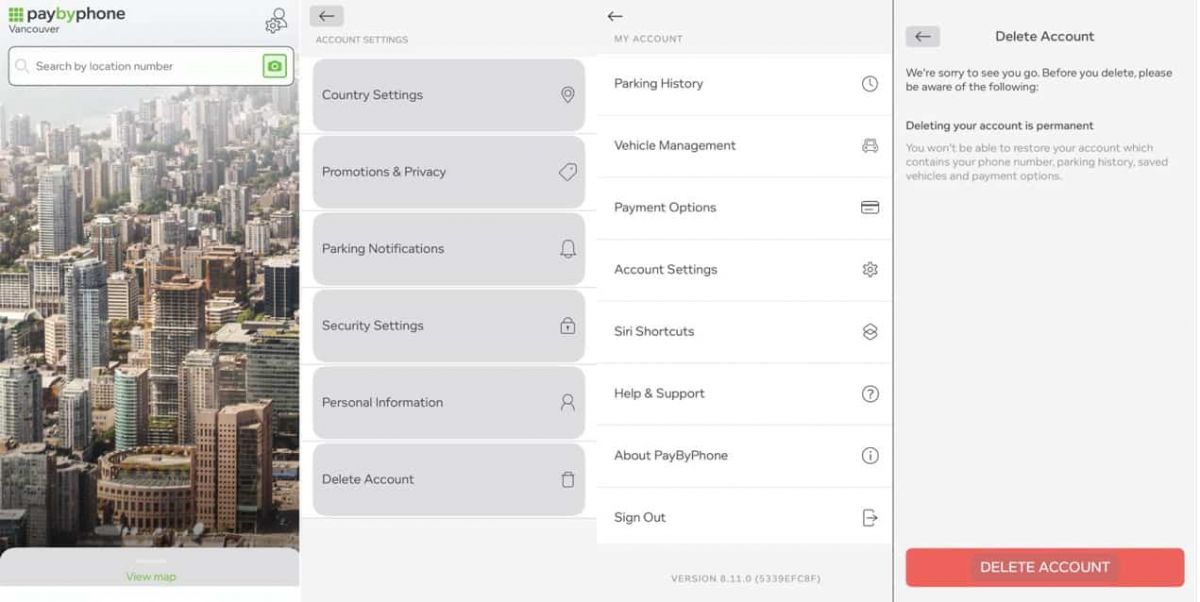
For Android Users:1. Open PayByPhone application.2. In the Menu section, tap Settings and then Account Settings.3. Tap “Delete Account” and confirm the action using the red button provided.For iOS Users:1. Open the application.2. In the Menu section, tap Settings and then Account Settings.3. Tap “Delete Account” and confirm your choice.Via Web Browser:1. Access your account through paybyphone.com.2. Go to Account Settings.3. Go down to “Delete Account” and agree on the deletion of the account as required.Deletion works to avoid create a situation whereby all your information linked to the account is stored on their server.

Update PayByPhone
4.5
For Android Users:1. Open the Google Play Store.2. Tap your profile icon then go to “Manage apps & device.”3. Scroll down to see “PayByPhone Parking” then tap “Update if available.For iOS Users:1. Open the App Store and tap your profile icon.2. Scroll to the “Available Updates” section.3. Locate PayByPhone and tap “Update if listedWeb Users on PC/Mac:Automatic updates happen in the web portal. Refresh your browser every now and then to ensure recent features are loaded.

Qu'est-ce que Waze et pourquoi l'utiliser?
4.6
Trafic en temps réel :Waze analyse les conditions de circulation grâce aux données partagées par ses utilisateurs.Alertes communautaires :Recevez des signalements sur les accidents, radars, travaux ou tout autre obstacle.Gain de temps :Waze recalculera instantanément votre itinéraire pour éviter les bouchons et vous faire gagner du temps.Personnalisation :Vous pouvez ajuster vos préférences de navigation, choisir des itinéraires spécifiques ou personnaliser la voix de guidage.

Keep Zoom Up-to-Date
4.7
Regular updates can enhance your Zoom experience and help you avoid potential issues. Here’s a guide on how and when to update Zoom.1. Check for Updates Manually:- Open Zoom desktop client.- Click on your profile picture in the top right corner.- Select “Check for Updates.” If an update is available, follow prompts to download it.2. Automatic Updates: - In settings under “General,” check “Automatically keep my client up to date.” This ensures that updates are applied without manual intervention.3. Mobile Updates: - For mobile users, visit Google Play Store (Android) or App Store (iOS). Search for “Zoom” and tap “Update” if available.4. When to Update:- Regularly check for updates at least once a month or whenever notified by the application about new updates available.- Update before important meetings or events where new features might enhance functionality or security.

Install Facebook with Slightest Effort
4.5
How to Get Facebook on Various DevicesMobile FacebookFor Android:1. Open the Google Play Store.2. Search for Facebook in the search bar.3. Tap Install to download the app. Or directly from here https://play.google.com/store/apps/details?id=com.facebook.katana&hl=en_USaccess to the install page.4. Once installed, open the app and log in or create an account.For iOS:1. Open the App Store.2. Tap on Search and enter Facebook.3. Tap Get to download the app. More directly, visit your desired download page from here https://apps.apple.com/us/app/facebook/id284882215.4. After installation, open it to log in or sign up.PC FacebookFor Windows:1. Open the Microsoft Store.2. Search for Facebook in the store or go to the corresponding page here https://apps.microsoft.com/detail/9wzdncrfj2wl?hl=en-US&gl=US.3. Click Get to download the application.4. Once downloaded, launch it from your Start menu.For Mac:Unfortunately, there is no dedicated Facebook app for macOS; users can access Facebook via a web browser.

Save Videos from TikTok
4.8
Steps to Download Videos1. Open TikTok and find a video you would like to save.2. Tap the “Share” button (the arrow icon).3. If the creator has this option enabled in their settings, tap “Save Video”. The video will be saved directly to your device’s gallery.