

Business Apps - Free Download & Official Reviews

Download Zoom Easily
 4.7
4.7
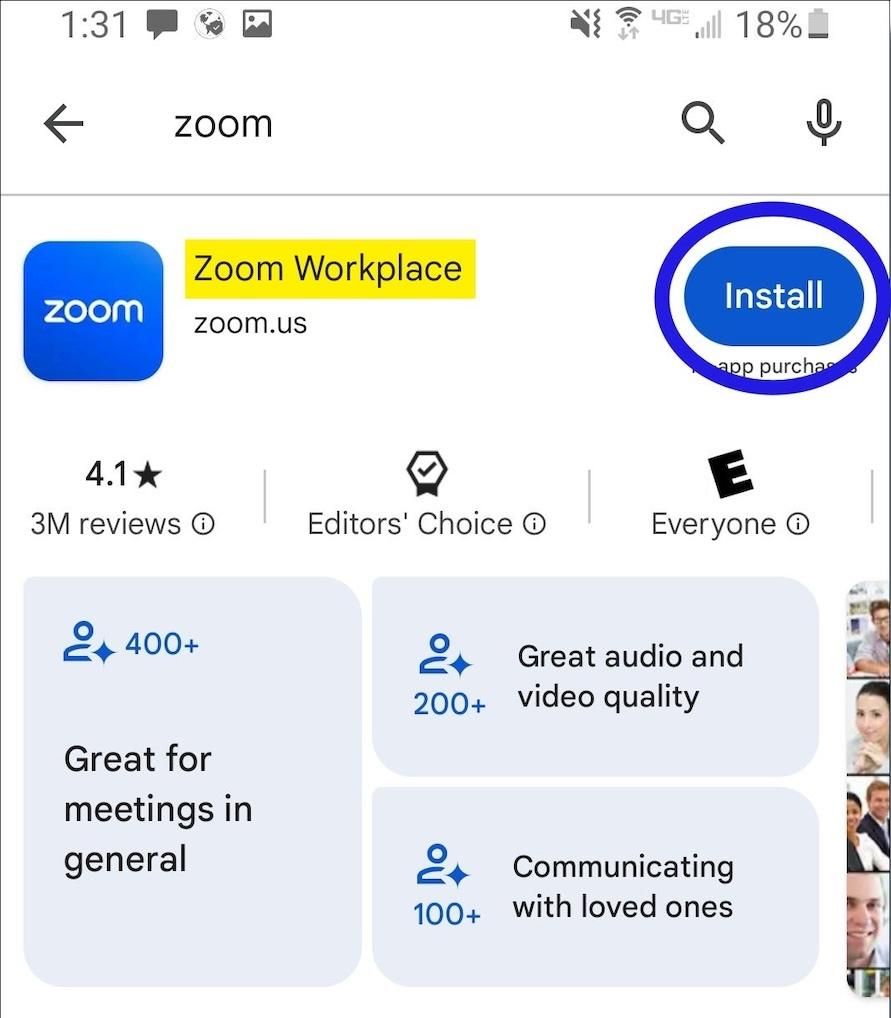
How to Install Zoom on Various DevicesFor Computer Systems (Windows and Mac):1. Open any browser and go to its official website herehttps://zoom.us/download.2. Click the blue “Download” button.3. Once downloaded, look for the installation file for Windows (ZoomInstaller.exe), or the .pkg file on Mac – in your downloads folder. Run the installer by double clicking, then follow the instruction on screen.4. If it requests any permissions, accept them through your operating system.For Mobile Android and iOS- Android:1. Open the Google Play Store.2. In the search box, type “Zoom Workplace” or install directly from here https://play.google.com/store/apps/details?id=us.zoom.videomeetings&hl=en_US.3. Click “Install” and wait for it to download.- iOS:1. Open the Apple App Store.2. Search for “Zoom Workplace”, or access it directly from here https://apps.apple.com/us/app/zoom-workplace/id546505307.3. Tap “Get” to download and install the application.Once installed, you can open Zoom and either log in or create an account.

Create Your Personal Account
4.7
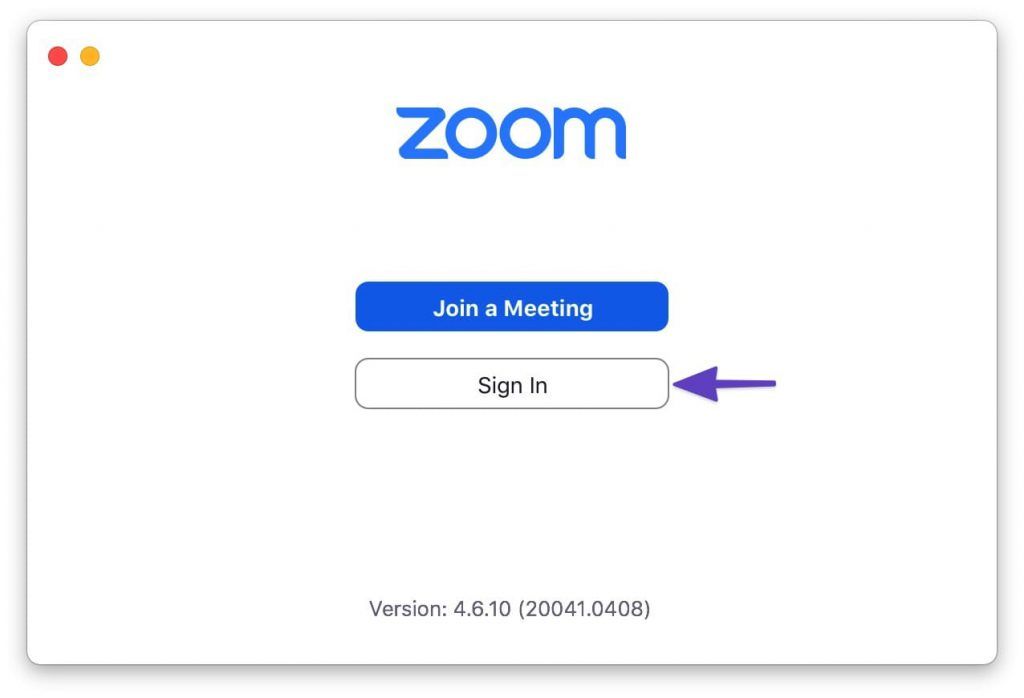
How to Create a Zoom Account1. Visit Zoom Website or App:- Open your browser and go to Zoom’s official signup page https://zoom.us/signup- If mobile, launch Zoom and press Sign In.2. Enter Your Information:- Enter your date of birth (at least 16 years old) and your email address.- There is an email confirmation, you click on the link in that email to activate and verify your account.- Then fill in first name, last name, and create a password after you confirm your email. Then click “Continue” to finish the process.- Alternatively, you can do the above verification using your Google account or Facebook account to register and login.3. Final Works- Sometimes you’re prompted to invite colleagues, or to start a test meeting, but you can skip these steps as well.- Tap the Zoom icon and tap the orange button: “Start Meeting Now”.

Schedule and Join a Zoom Meeting
4.7
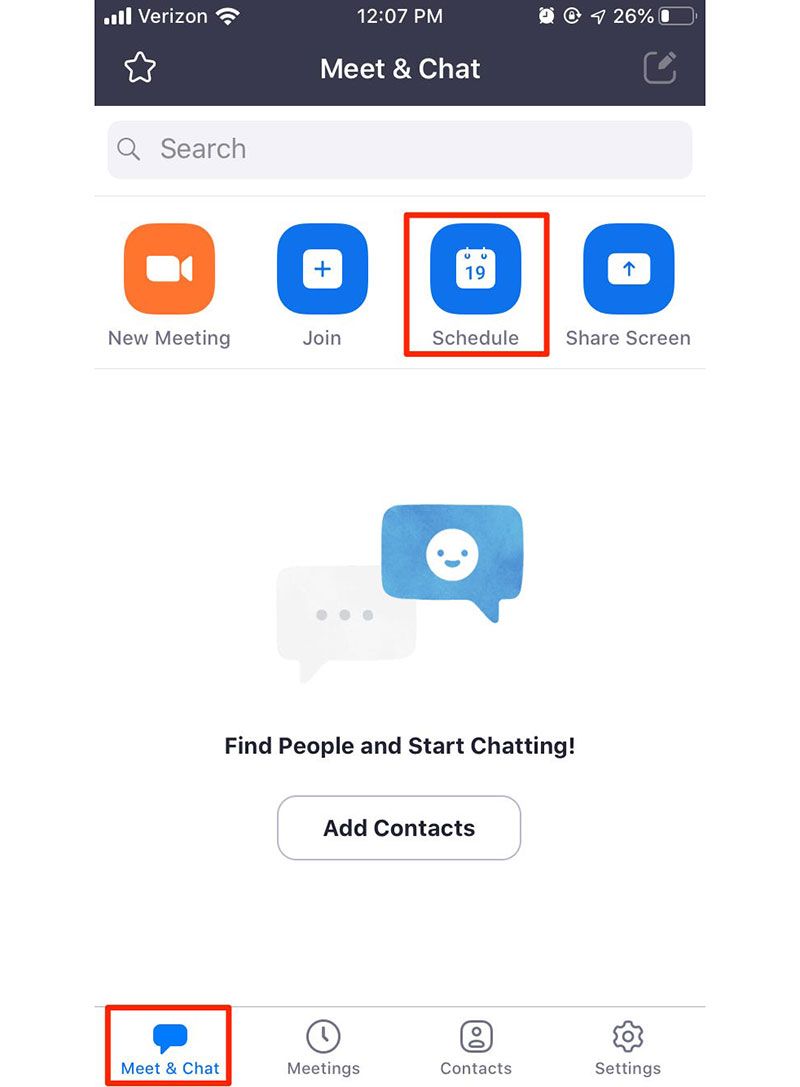
How to Arrange and Attend Zoom’s MeetingArrange a Meeting:1. Sign into your Zoom account via its app or its official website.2. Click on “Schedule” from the home screen.3. Choose the date, time, duration, and any additional settings like requiring a password or enabling waiting rooms.4. After saving your settings, share the generated meeting link with participants via email or messaging apps.Attend a Meeting:1. Launch Zoom or visit the website.2. Click on “Join a Meeting.”3. Input the meeting ID provided by the host along with your display name.4. If required, enter the meeting password before clicking “Join.”5. Adjust your audio and video settings as necessary.

Ensure Privacy During Using Zoom
4.7
Privacy Tips1. Always enable an automatic ID and create passwords for your meetings to prevent unauthorized access.2. Enable waiting rooms lets hosts screen participants before they join the meeting, adding an extra layer of security.3. Set screen sharing options so that only hosts can share their screens unless permission is granted to others.4. Limit chat functions during meetings by allowing participants to chat only with hosts if necessary.5. Limit what information is publicly visible in your profile.

Set Up Virtual Backgrounds in Zoom Meetings
4.7
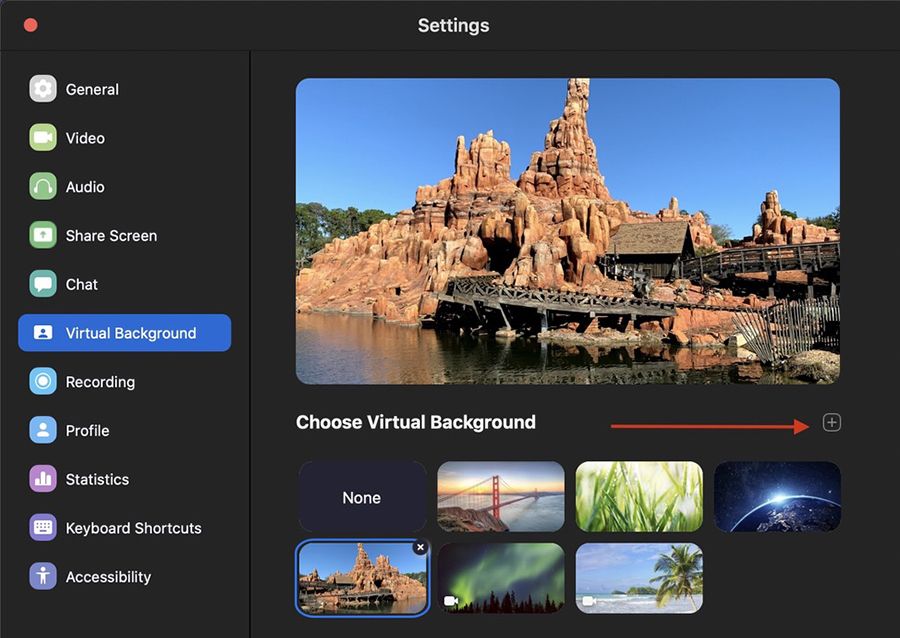
How to Set a Virtual Background for Zoom Meeting1. Open Zoom Settings:- Log in to Zoom, click on Settings (gear icon), then select Virtual Background.2. Choose or Add a Background:- Select a background from Zoom’s default options, or click + to upload your own image.- Ensure good lighting conditions for optimal performance of virtual backgrounds; avoid busy patterns in clothing as they may interfere with background effects.3. Adjust for Best Results:- Sit in the middle of the camera frame and use a solid background as well as good light if possible, and enable I have a green screen if you have one.- Use the “Mirror My Video” option to see what others will see and make some adjustments if needed.

Keep Zoom Up-to-Date
4.7
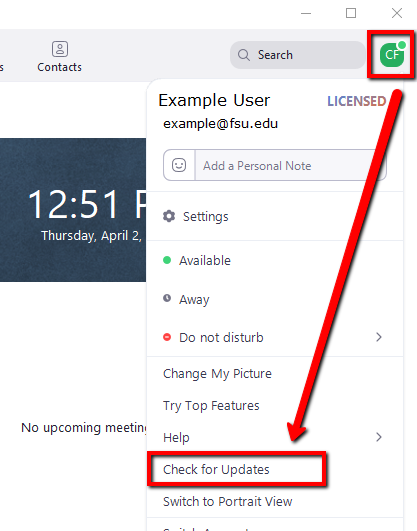
Regular updates can enhance your Zoom experience and help you avoid potential issues. Here’s a guide on how and when to update Zoom.1. Check for Updates Manually:- Open Zoom desktop client.- Click on your profile picture in the top right corner.- Select “Check for Updates.” If an update is available, follow prompts to download it.2. Automatic Updates: - In settings under “General,” check “Automatically keep my client up to date.” This ensures that updates are applied without manual intervention.3. Mobile Updates: - For mobile users, visit Google Play Store (Android) or App Store (iOS). Search for “Zoom” and tap “Update” if available.4. When to Update:- Regularly check for updates at least once a month or whenever notified by the application about new updates available.- Update before important meetings or events where new features might enhance functionality or security.

Easy Installation of ParkMobile
4.5
For Android Devices:1. Swipe up the screen of your device to open the Google Play Store app.2. Search for “ParkMobile.” More simply, just visit the result page from here https://play.google.com/store/apps/details?id=net.sharewire.parkmobilev2&hl=en.3. To download the application, click on the button labelled “Install”.4. After the app appears, to start its usage, launch the app and create an account with the application.For iOS Devices:1. Open the Apple App Store.2. Search for “ParkMobile.” Or, simply view the corresponding page from here https://apps.apple.com/us/app/parkmobile-park-pay-go/id365399299.3. To get the app, click on the “Get” button.4. After installation of this app, you simply have to enter it and finish the registration process.For PC Users:ParkMobile can be used directly through any browser on the internet using ParkMobile at parkmobile.io. A first-time user of this service does not require any downloading of software, one has to register online.Fascinating Features of ParkMobileParkMobile offers several innovative features that enhance the parking experience:1. Find Parking Easily: The application enables the user to find open parking lot around their location through GPS navigation.2. Pay via Smartphone: Pay for parking through a smartphone without having to use coins or cash at all.3. Session Management: The app is capable of sending notifications for your parking session, and an option to renew the time set.4. Parking Reservations: People are able to book the parking spaces in advance hence guarantee that there will be parking space when they get there.

Secure Transfers on Zelle
4.5
Steps to Ensure Safe Transactions1. Double-check the email address or U.S. mobile number of your recipient before you send money. Verify the recipient’s identity, either by contacting them verbally, or through a communication channel that you know to be trusted. Then send.2. Only send money for family and friends using the Service. Do not send money to unknown recipients to purchase goods or services from individuals you do not know.3. Beware of phishing scams or suspicious requests for money. Never share your Zelle PIN or verification codes with anyone. Be wary of emails or texts claiming to be from Zelle asking for personal information.4. Set up transaction notifications in your banking app to receive alerts for every Zelle transaction. Review these notifications promptly to identify any unauthorized activity.5. Check your bank account statements frequently to monitor for any suspicious transactions. Report any unauthorized activity to your bank immediately.6. Use strong, unique passwords for your online banking and Zelle accounts. Enable two-factor authentication (if available) for added security.

Discover Unique Features of Ghost Detector
4.2
At its core, Ghost Detector Real Life Radar combines a series of advanced features: a ghost radar, a camera scan, EVP (Electronic Voice Phenomenon) recording, and interactive maps. The radar serves the purpose of visualizing spirits that are within range, and the camera makes use of real-time scanning to look for hidden movements, sometimes signaling their presence with red dots or radar spots. The app also uses your device’s light, infrared, and motion sensors to add to detection, adding credibility to each sighting—though ultimately for entertainment. Its night vision mode is also a stand-out feature, allowing users to explore dark places and perhaps find spooky activity where conventional means cannot.This app differs from more flexible ones, favoring simplicity of use. There are hardly any settings, so beginners can just jump in without confusion. With its EVP recorder, the users attempt to record anomalies in ambient sound—getting whispering voices or unexplained sounds on playback sometimes. The application is ideal for solo entertainment or group excursions, offering a new thrill each time. However, it should be understood that the result depends mainly on the quality of the device’s sensor and environment.