

Items Apps - Free Download & Official Reviews

Top 5 Competitors of Walmart
 4.8
4.8
1. Amazon is Walmart’s most formidable competitor, with a leading position in online retail through product assortment and its popular loyalty program, Prime. The service excels at providing lightening speed delivery options, reputable product reviews, and low-price options. Further, its robust recommendation engine and seamless digital experience, bolstered by services such as Prime Video and Music, facilitate an all-inclusive ecosystem that is nothing short of sticky.2. Target positions itself as more upmarket, emphasizing style and quality while keeping prices competitive. Its differentiation lies in exclusive designer collaborations, fashion-forward private labels, and an overall nicer shopping experience. Target’s Circle rewards program and emphasis on digital integration via its app have better positioned the company, especially for middle-income consumers.3. Costco executes its business model well within membership-based wholesale, using bulk pricing for premium products. With a much smaller number of locations than Walmart, it maintains customer loyalty with its premium products, excellent return policies, and strong private labels such as Kirkland Signature. Among its member values is the consistent quality and a treasure hunt to shop.4. Kroger is at an edge among grocers, pushing back against Walmart’s supermarket dominance, by using its broad network of grocery stores, its digital integration through Kroger Plus, and a focus on fresh products and private labels. Its investment in technology and online grocery services has been one of the reasons for its strengthened competitive positioning.5. Temu, a rapidly growing online newcomer, tries to fight Walmart on price in almost every category imaginable. Backed by PDD Holdings, Temu has been snatching up market share thanks to aggressive marketing, steep discounts, and an array of items directly from manufacturers. Its platform is certainly aimed at the price-conscious consumer, promising to let users “Shop like a billionaire” with frequent promotional offers.

Scan & Go with Walmart+
4.8
What is Walmart+ Scan & Go?The Scan & Go technology works just that: you scan product barcodes through your smartphone, further tracking your real-time expenditure and completing payment inside the store. It’s only available to subscribers of Walmart+, which, in turn, is another reason to subscribe to the membership.Step-by-Step Guide to Using Scan & Go1. Make sure you have downloaded and installed Walmart onto your mobile device.2. Open the app, either near or inside a Walmart store.3. Tap Services, then select Scan & Go from the menu.4. Utilize your phone’s camera to scan barcodes of items as you go along; they’ll be added right to your virtual cart.5. Take a look at your cart total in the app; you can adjust quantities or remove items.6. Once finished shopping, proceed to a self-checkout area where you will scan a QR code displayed on one of their screens.7. Complete payment through your phone using saved payment methods; a receipt will be sent electronically.


Download Walmart Easily
4.8
Download Walmart on Mobile DevicesFor iOS (Apple devices):1. Open the App Store.2. Tap on the Search tab at the bottom.3. In the search field, type Walmart. More simply, just visit the downloading page directly from here https://apps.apple.com/us/app/walmart-shopping-savings/id338137227.4. Tap Get next to Walmart in the results list to download.5. Once downloaded, tap Open to begin the setup process for the app.Android Devices1. Go to the Google Play Store.2. Tap the Search icon at the top.3. Type Walmart and then select the app from the results. Or you can go to the same page from here https://play.google.com/store/apps/details?id=com.walmart.android&hl=en_USwithout any effort.4. Tap Install to download it.5. Once installed, open the application and follow through on the setup.To use Walmart on a computer:1. Open your web browser of choice and go to Walmart’s official website from here https://www.walmart.com.2. All functionality can be accessed from the website, with no need to download an application.

How to Pay within Walmart
4.8
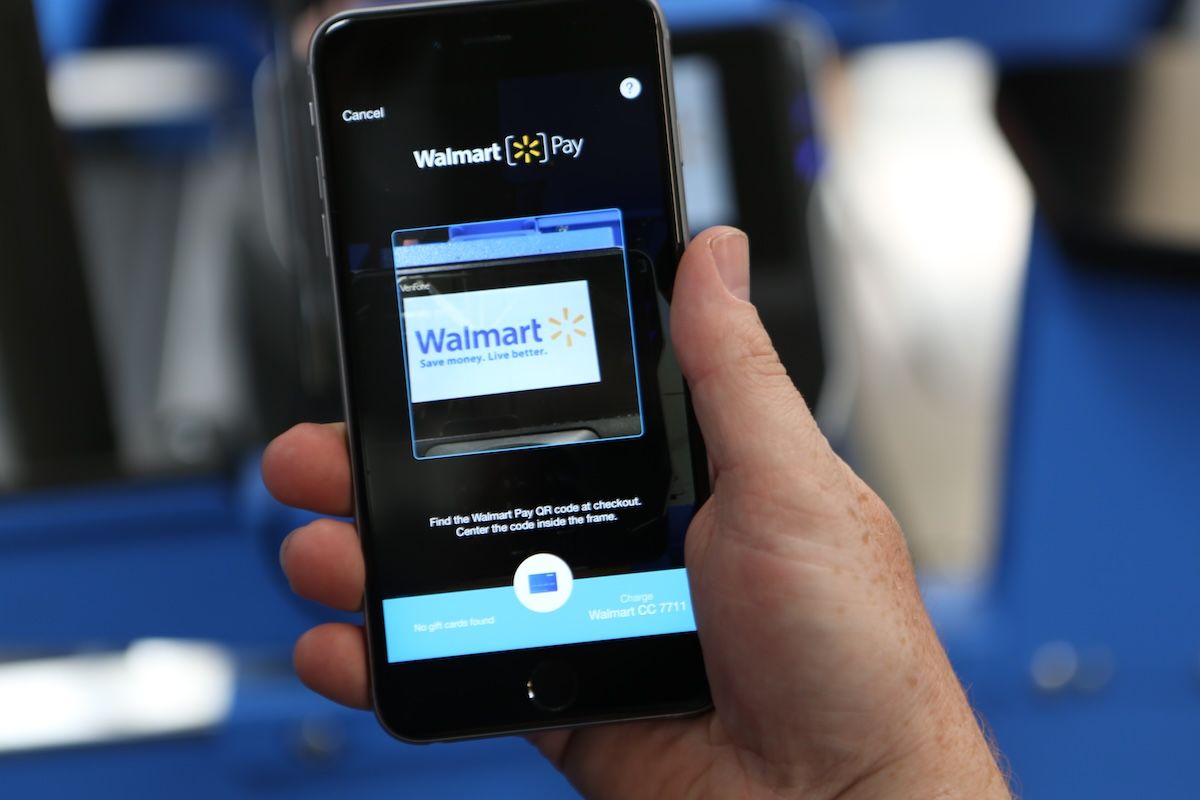
What Options of Payment Does Walmart Take?1. Credit and Debit Cards: They include Visa, MasterCard, Discover and American Express.2. Digital Wallets: They will accept payments from PayPal, Affirm (for financing) and other such online payment services.3. Gift Cards: Physical and digital Walmart gift cards are redeemable at check out.4. EBT (Electronic Benefits Transfer): You can use SNAP benefits in store or for qualified online grocery purchases.5. Other Methods: Personal checks, cash, and Walmart branded credit cards.What is Walmart Pay?Walmart Pay is Walmart’s digital wallet inside of Walmart, where you can use a QR code to pay at in store registers. It makes customers’ lives simpler, by saving their time and ensuring transaction safety since they don’t need to use physical cards or cash.

How to Update Walmart
4.8
For iOS devices:1. Open the App Store.2. Tap on your profile icon at the top right corner.3. Scroll down to find pending updates; if Walmart is listed, tap Update next to it.For Android devices, follow these steps:1. Launch the Google Play Store.2. Tap the three horizontal lines (menu) in the top left corner.3. Select My apps & games and look for Walmart in the list of updates available.4. If Walmart shows up, tap Update next to it.For PC users accessing Walmart via browser, no update is needed; refreshing your browser will implement any changes/enhancements made on the website.

Simple Steps to Install Ghost Detector
4.2
To download Ghost Detector Real Life Radar, start by opening your device’s app store, i.e., Google Play for Android users. Or more simply, visit the same downloading page from here https://play.google.com/store/apps/details?id=com.Radar.CameraReal.GhostDetector&hl=en. Since Ghost Detector Real Life Radar is not found on the iOS App Store, there are some installation steps described below only for Android users. Type the full name of the app into the search bar to find the official app released by Spot Among Party. Always verify the developer’s name to avoid imitations or unofficial releases. Click the install button upon location. Tap install button, after finding it. Depending on the internet speed, the app will download and install itself in a few minutes.Make sure your device has enough memory and a good internet connection before it is installed. The application is not heavy hence will not significantly strain your phone although it is advisable to update the system regularly so as to render smooth compatibility. Once installed, provide the required permissions, including location services, with which the app works to imitate the radar type of ghost detection. Without these permissions, the core functions may not operate properly.Its icon will be on your home screen once you have installed it. Tap its icon to launch it for the first time. You might be shown a brief tutorial screen explaining simple controls and functionality, and that’s a good way of getting used to prior to actual use.

Simplify Your Overseas Money Transfers with Remitly
4.9
The offering provides a number of ways that recipients can collect money, enhancing its flexibility and ease of use. Several users also mention that Remitly is affordable, thanks to its competitive exchange rates and wallet-friendly transfer services available for a number of countries.Although a few users have reported customer service responsiveness in specific cases and fees on smaller transactions, the general opinion stresses that of a reliable and efficient app for everyday use. For those who are coming from international backgrounds with families abroad, Remitly is a cut above the rest by making cross-border payments easier and more accessible.

Stay Current of Google Translate Updates
4.3
Updating on Android Devices:1. Open the Google Play Store.2. Tap your profile picture at the top-right corner.3. Select “Manage apps & devices.”4. In the “Updates available” area, find Google Translate.5. Tap “Update.”Updating on iOS Devices:1. Launch the App Store on your iPhone/iPad.2. Tap your profile icon at the top corner.3. Scroll down to find Google Translate under “Updates Available.”4. Tap “Update” to update to the latest version.Updating Web Version1. The web interface (translate.google.com) gets automatically updated on Google servers.2. Clear cache in the browser to have the latest version.3. Refresh the webpage after clearing cache to get the latest version loaded.4. Look out for new features or new changes in the interface that indicate updates.