

Hot App Reviews - Best Free Apps Download & Guides

Install Instagram at No-Cost
WhatsApp Setup

Download and Install YouTube

Make and Manage Payment in Play Store
 4.8
4.8
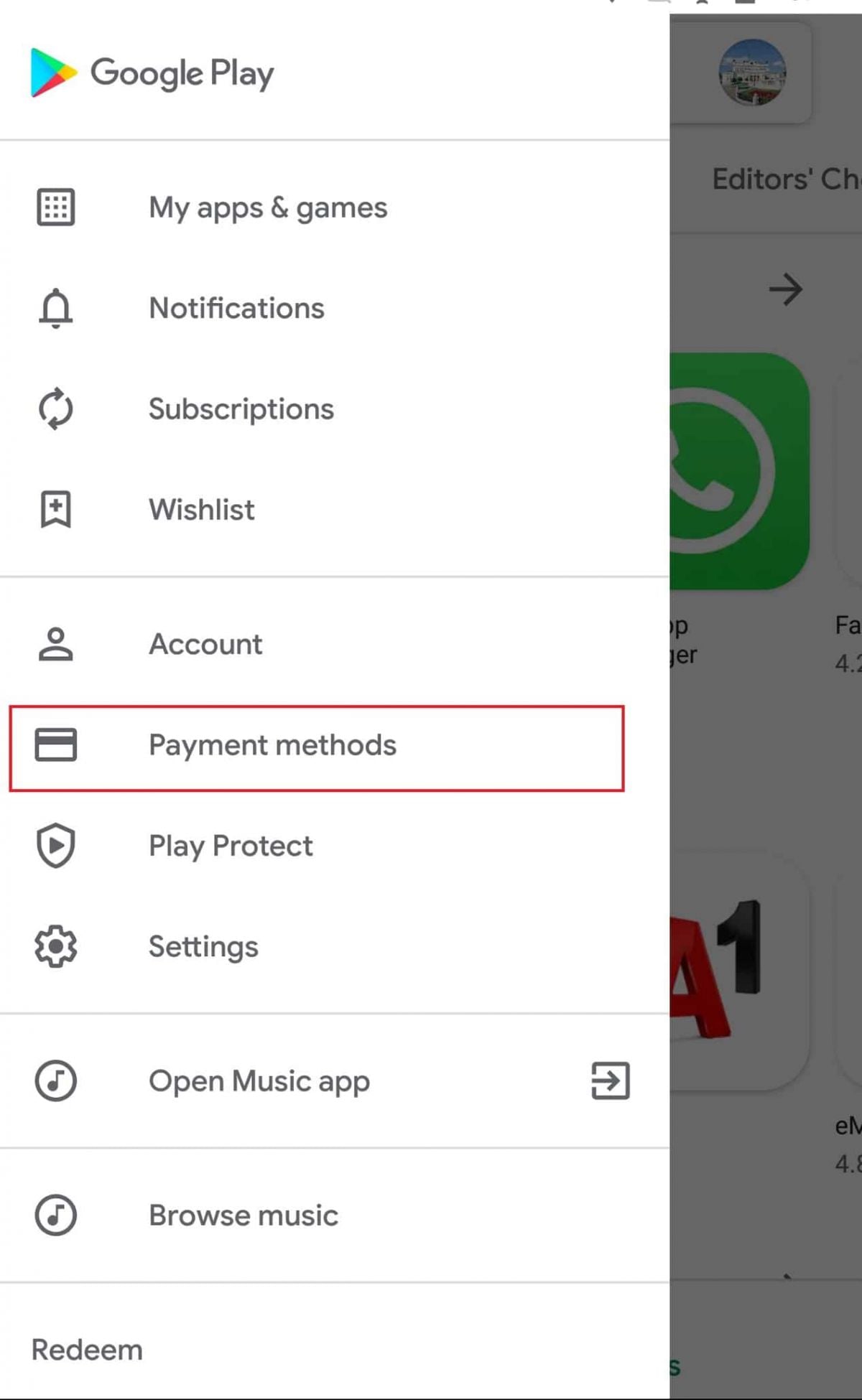
How to Make Purchases1. Open the application from the home screen of your device.2. You can search using the search bar or browse through categories.3. Tap the app or game you want to purchase.4. Tap the price button of corresponding app examples include “Buy” or “Install.”5. If prompted, select a payment method or add a new one.6. If prompted, follow any additional on-screen instructions to complete your purchase.Managing Payment Methods1. Open Play Store Settings by tapping your profile icon.2. Tap Payments & Subscriptions then select Payment Methods.3. Now you can add, remove, or update payment methods such as credit cards or PayPal to control how you pay.Removing Payment Methods in DetailTo remove a payment method from an account, follow these steps:1. Open the app.2. Tap your profile icon, located in the upper-right corner.3. Tap “Payments & Subscriptions,” then tap “Payment Methods.”4. Scroll down, and tap “More Payment Settings” that opens in a web browser5. Find the source of payment you wish to remove and tap “Remove.”

Update PayByPhone
4.5
For Android Users:1. Open the Google Play Store.2. Tap your profile icon then go to “Manage apps & device.”3. Scroll down to see “PayByPhone Parking” then tap “Update if available.For iOS Users:1. Open the App Store and tap your profile icon.2. Scroll to the “Available Updates” section.3. Locate PayByPhone and tap “Update if listedWeb Users on PC/Mac:Automatic updates happen in the web portal. Refresh your browser every now and then to ensure recent features are loaded.

Secure Transfers on Zelle
4.5
Steps to Ensure Safe Transactions1. Double-check the email address or U.S. mobile number of your recipient before you send money. Verify the recipient’s identity, either by contacting them verbally, or through a communication channel that you know to be trusted. Then send.2. Only send money for family and friends using the Service. Do not send money to unknown recipients to purchase goods or services from individuals you do not know.3. Beware of phishing scams or suspicious requests for money. Never share your Zelle PIN or verification codes with anyone. Be wary of emails or texts claiming to be from Zelle asking for personal information.4. Set up transaction notifications in your banking app to receive alerts for every Zelle transaction. Review these notifications promptly to identify any unauthorized activity.5. Check your bank account statements frequently to monitor for any suspicious transactions. Report any unauthorized activity to your bank immediately.6. Use strong, unique passwords for your online banking and Zelle accounts. Enable two-factor authentication (if available) for added security.

Stay Updated Hassle-Free Across Devices
4.3
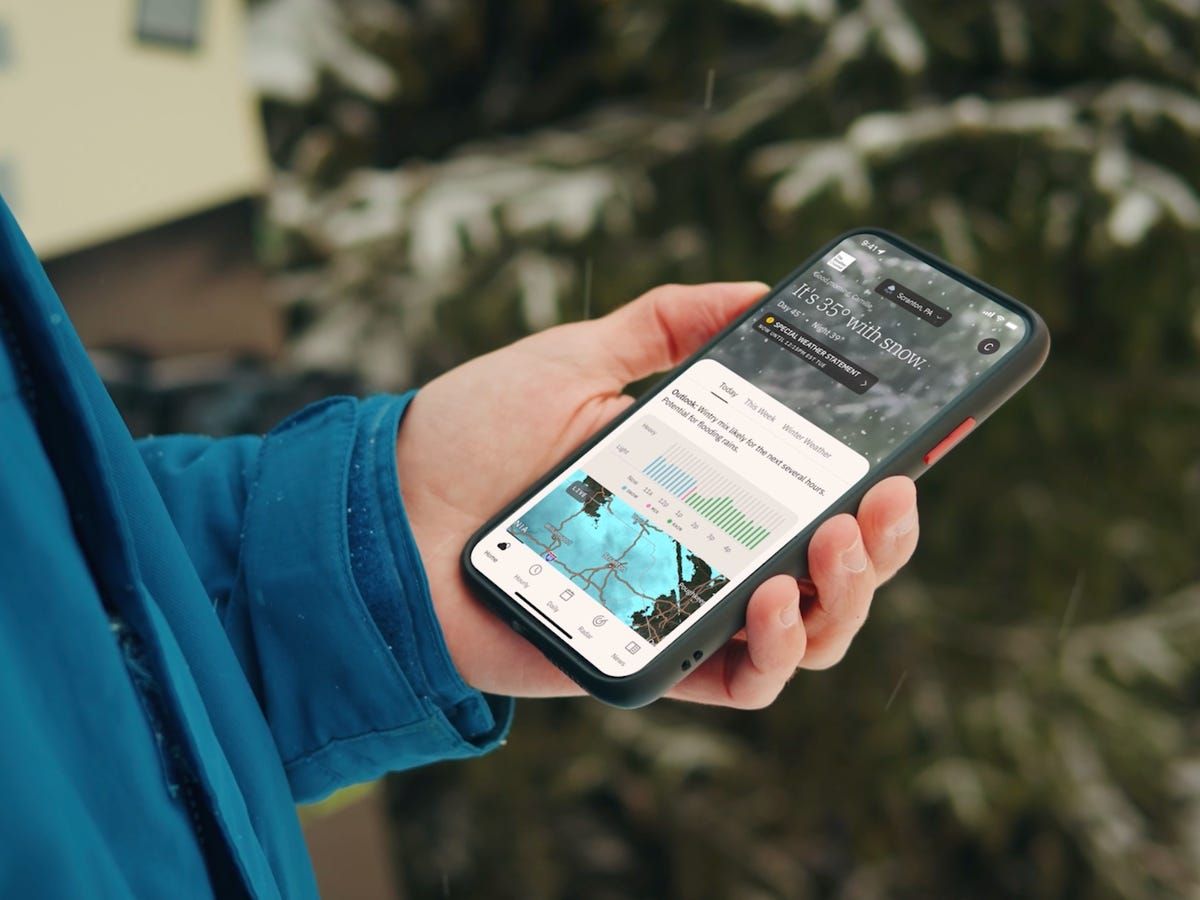
Updating on iPhone (iOS)1. Open the App Store on your iOS device2. Click on your profile picture in the top right3. Swipe down to see available updates for every app4. Locate The Weather Channel in pending updates list5. Tap “Update” next to the name of the app to start it6. Alternatively, tap “Update All” to install all apps at once7. Wait while download and install are completed8. After updating, launch the app to verify that it’s running smoothly9. Check the “What’s New” section to learn about new featuresUpdating on Android Devices1. Launch Google Play Store on your Android device2. Tap your profile icon in the top right3. Select “Manage apps and device”4. Search for “Updates available” to see pending updates5. Find The Weather Channel in the list6. Tap “Update” next to the app7. To get automatic updates, visit the page of the app8. Tap the three dots on the top right corner9. Choose “Enable auto-update” to update the app automatically10. Once updated, open the app to verify that the update was successfulUpdating on PC (via Web)The web version updates automatically, but keep your browser up to date for optimal performance.

Effortless Google Translate Access
4.3
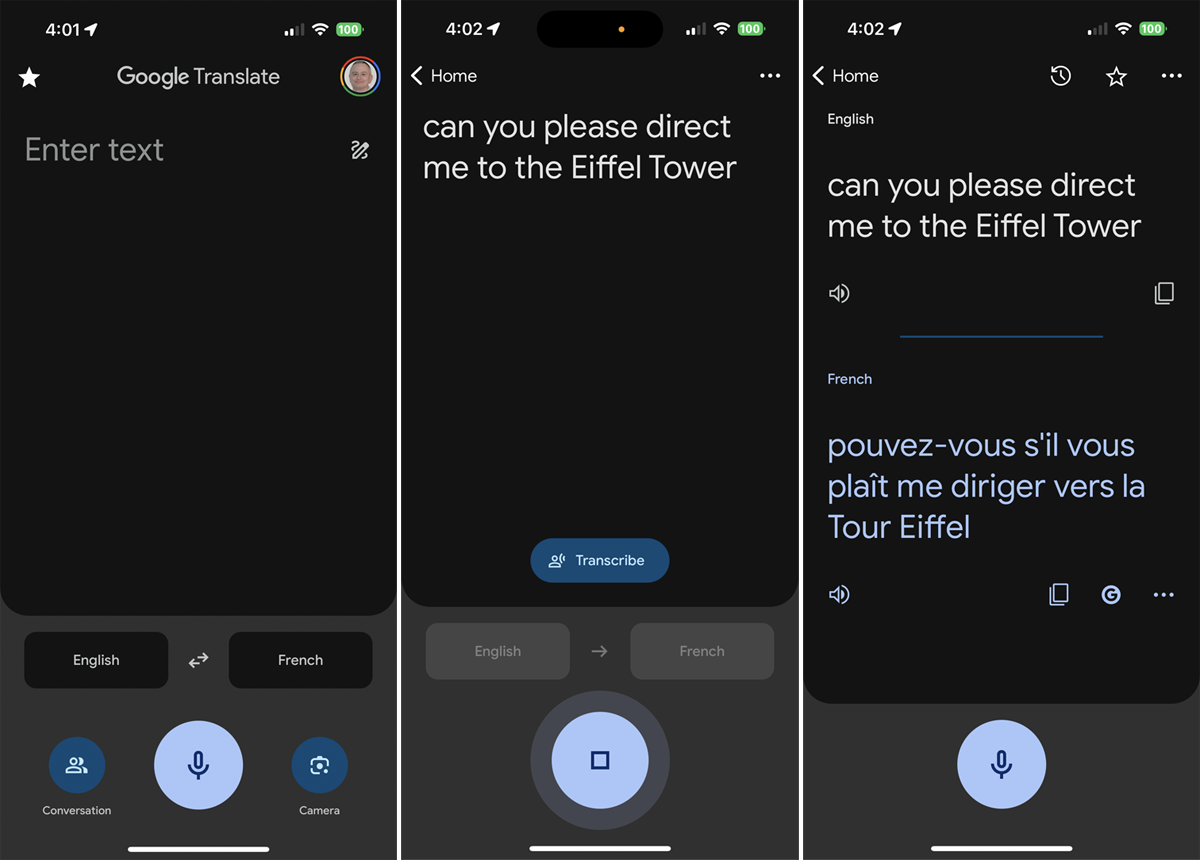
Mobile Installation (Android)1. Open the Google Play Store on your Android device2. Tap the search box at the top and type “Google Translate”3. Select Google Translate from the search results, or more straightforwardly, go directly to the same app installation page from here https://play.google.com/store/apps/details?id=com.google.android.apps.translate&hl=en&gl=us4. Click the “Install” button and let the download complete5. Once installed, click “Open” to launch the app6. Sign in with your Google account (optional but recommended for saving your translation history)7. Grant necessary permissions when prompted (microphone for voice translation, camera for photo translation)Mobile Installation (iOS)1. Launch the App Store on your iPhone or iPad2. Click the “Search” tab at the bottom right3. Type “Google Translate” into the search bar4. Select Google Translate from the list, otherwise, visit the detail page from here https://apps.apple.com/us/app/google-translate/id4147065065. Tap “Get” and input your Face ID, Touch ID, or Apple ID password6. Wait for it to download7. Tap “Open” or find the app on your home screen to open it8. Sign in with your Google account (optional)9. Allow permissions when prompted for full functionalityPC (Web Browser)1. Type translate.google.com into your web browser of preference.2. No installation necessary, but save to use it in the future.3. Optional: for Chrome, download Google Translate through the Chrome Web Store for convenient shortcuts.

Live Communication with Google Translate Interpretation
4.3
Setting Up the Interpreter Mode:1. Open Google Translate.2. Tap “Conversations” from the bottom menu.3. Choose the languages for both speakers.4. The app will show automatically which language is being spoken and will translate it real-time.How It Works:- Person A speaks in his own language. The app identifies and translates his words by voice and display in Person B’s language.- Person B responds in their language, and Google Translate translates their response for Person A.Successful Simulations Secrets:- Speak clearly with minimal background noise.- Use short sentences or phrases for greater accuracy.- Have both speakers held near the microphone.

Extend Your Parking Session Remotely
3.5
You may check the time remaining on your session's countdown timer from the app home screen, while your parking is live. And to buy yourself more time, scroll down to “Active Session”and hit “Session Options.”Then tap “Extend”when the option appears and select how long you need to extend it by.Or if you allow notifications, the app will remind you when your parking session is about to expire. This notation keeps it in your face to add more time. When it prompts you, just tap “Yes,”and you’ll be directed to the extension payment screen. Keep in mind that you cannot go beyond the maximum time a parking zone is active, so extend will not be available at times.

Real-Time Matching to Licensed Local Drivers
4.8
This is a safe and efficient system. Uberdoes not confirm whether each driver meets these criteria, but it appears that all of them do. Government databases are queried every day by the system to verify that only valid drivers continue to be allowed on the network. Passengers can see driver profiles — a photo, license plate number and the make of the car — before a trip begins, and they can monitor the ride using GPS in real time.

Revolutionizing Daily Mobility and Beyond
4.8
Affordabilityand flexibilityis the platform's motto. Cost-saving options, such as Route Share (potential 50-percent discount on regular rides) and Rides Passes provide price predictability to frequent riders.Get great value from Uber One membership which provides you with access to discount fares, premium driver matching and special promotions. Beyond mobility, Uberadds convenience to the mix with lightning fast meal and retail deliveries thanks to partnerships with brands such as Best Buy and Sephora.

Why Use This Digital Cruise Companion
4.6
One of the best features is the ability to manage events and services in real time. Users can also check daily schedules of hundreds of events, tick off favorites and set reminders to not miss anything. The app also offers helpful day-of travel information such as dining menus, hours of operations for venues, weather details and port arrival times. And for good measure, it offers food and beverage ordering delivered just about anywhere on the ship as well as virtual queuing for certain offerings to minimize idle time in line.There is also the fact you can communicate and manage your account from within CTDP that's pretty big. For a low flat fee, guests can access the chat function to keep in contact with family as they move throughout the ship. The app also provides real-time updates of your Sail & Sign shipboard account balance, so you can keep an eye on spending without having to visit a kiosk. Interactive deck plans, the ability to book shore excursions or spa treatments and more also make it a comprehensive cruise companion.Bringing all the components of a traveler's journey together in one place, guests can book spa treatments, make specialty dining and shore excursion reservations, choose internet packages as well as access information on everything from custom photo packages to detailed itinerary information.